
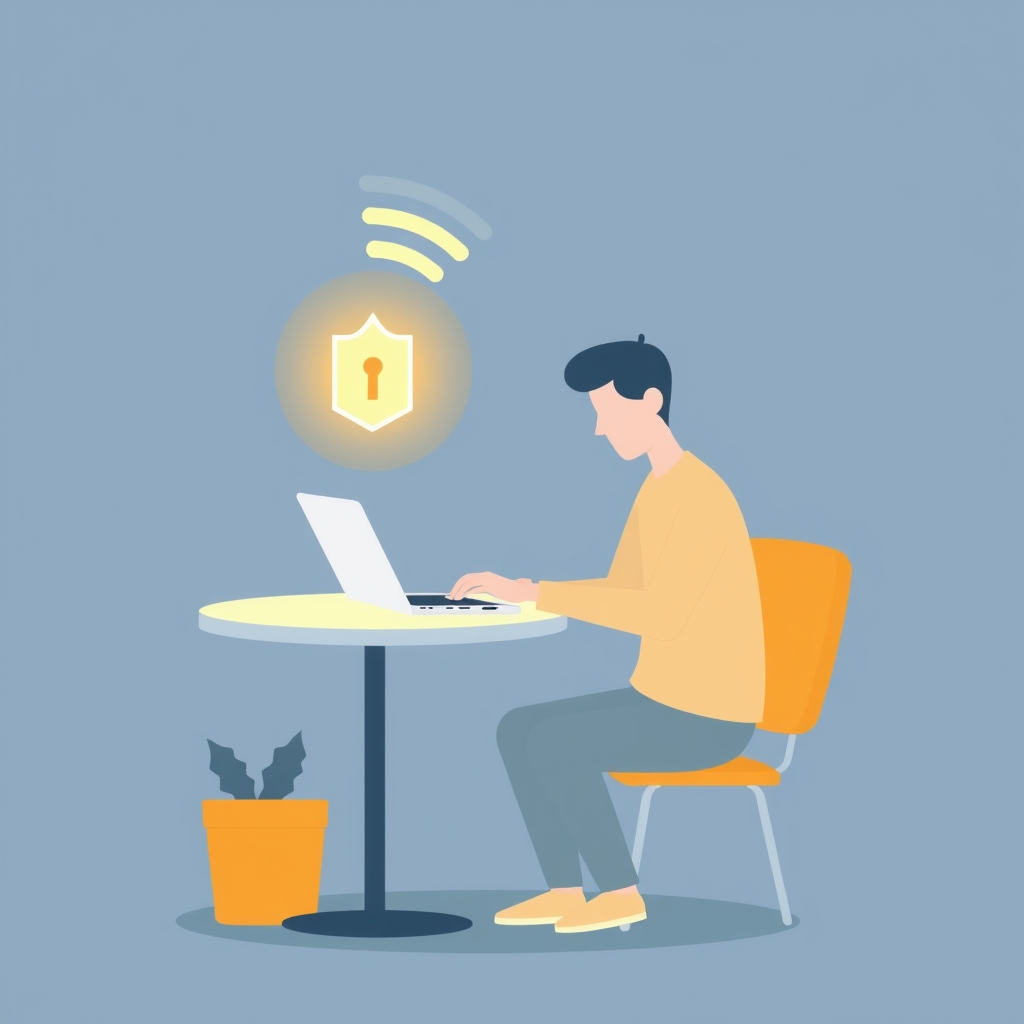
You are sitting in a café, airport lounge, or co-working space. The free Wi-Fi looks inviting — and for many of us, that is where the danger begins. Open public Wi-Fi networks are often not encrypted: traffic on those networks can travel in plain text across the local network, so a malicious actor on the same network can potentially see what you send and receive. If you log into your email, banking app, or company dashboard without extra protection, they can capture credentials, inject malicious traffic, or redirect you to a fake login page (a “man-in-the-middle” attack).
For anyone who works remotely or travels frequently, this is a daily exposure. A Virtual Private Network (VPN) can reduce the risk by creating an encrypted tunnel between your device and a VPN server. Electron VPN — available for Android — is a practical option for Android users who want to add an encrypted tunnel when using public networks.
Why Public Wi-Fi Needs Care
Here is what makes public Wi-Fi different from a well-secured home connection:
- Open networks are often not encrypted — Many public networks do not encrypt traffic between your device and the internet. Packets can travel in plain text across the local network, as Microsoft explains in its Be safer over wireless connections guidance.
- Shared access point — Devices on the same café Wi-Fi may share a local network, so a person with basic network tools can sniff unencrypted traffic. Not every public network exposes all devices to each other: some venues use client isolation, which keeps devices from seeing one another’s traffic directly.
- Rogue access points — Attackers can set up a fake Wi-Fi network with the same name as a legitimate café network. If your phone auto-connects, it may join the attacker’s network instead of the real one.
- Session hijacking — If you are logged into an account that does not use secure session protections, an attacker can potentially grab a session cookie and hijack your active session. Note that HTTPS/TLS already encrypts credentials and content between your browser and the website even on an open Wi-Fi network — the main exposure is plaintext traffic from protocols that do not use encryption, not HTTPS sessions.
These are real risks, but they are not universal: HTTPS protects the content of most web sessions — login forms, banking pages, and encrypted APIs are shielded by TLS even when the local Wi-Fi is open. A VPN adds an extra encrypted tunnel between your device and a VPN server, which is especially useful for the remaining unencrypted traffic (certain apps, DNS lookups, non-HTTPS sites) and for hiding your browsing patterns from the local network.
What a VPN Actually Does
A Virtual Private Network (VPN) creates an encrypted tunnel between your device and a VPN server. The practical effect is that traffic inside that tunnel is encrypted: even if someone on the same Wi-Fi captures your packets, they cannot read the contents. A VPN can also route DNS queries through the tunnel, reducing the risk of DNS spoofing, and it can mask your public IP address at the network level.
However, a VPN does not provide end-to-end protection for all traffic. The VPN encrypts the leg between your device and the VPN server; after that point, the connection from the VPN server to the final website may or may not be encrypted — and if the destination site uses HTTPS, the browser establishes its own TLS session directly with that website, independent of the VPN. A VPN also does not make you immune to phishing, malware, or stolen cookies, and it does not guarantee protection against every rogue access point or DNS-tracking attempt. Treat it as one useful layer in a broader security habit, not a complete shield.
5-Step Routine: Staying Secure on Public Wi-Fi
Whether you are at an airport, a café, or a co-working space, follow this routine every time:
- Turn off auto-connect for public networks — On your phone, go to Wi-Fi settings and disable “auto-connect” or “remember this network” for networks you do not trust. This prevents your phone from silently connecting to a rogue access point with the same SSID.
- Connect to the VPN before opening any app — Open Electron VPN, select a server location, and wait for the connection indicator. Do not open your email, banking, or work apps until the VPN tunnel is up.
- Verify the network name — Confirm the SSID matches the official network name used by the venue. If you are unsure, ask a staff member or use mobile data.
- Use HTTPS and keep software updated — Even with a VPN, prefer websites that use HTTPS, keep your apps and operating system updated, and use multi-factor authentication where available.
- Log out and disconnect on departure — When you leave the café, close all sensitive apps, disconnect from the public Wi-Fi, and turn on mobile data if you need to stay online. A short habit that reduces residual risk.
Electron VPN: What It Does Well
Electron VPN is a straightforward VPN app designed for Android. Here is what makes it practical for the use cases above:
- Quick connect — Start a VPN connection before opening sensitive apps on a public network.
- Server selection — Choose from available server locations so you can connect to a nearby server for lower latency, or a different region for geo-specific content.
- Encrypted tunnel — The VPN encrypts traffic between your device and the VPN server, adding a layer of protection when the local network is open or untrusted.
- Free to try — Download and test on the Google Play Store before committing.
The app is built by Auriferous Technologies and is available on Android. For a broader look at what Electron VPN covers and how it compares, see our earlier article on Electron VPN for Android.
Common Mistakes to Avoid
- Connecting to the VPN after opening your email — The order matters. VPN first, apps second. Once your email is open, the initial connection may already have been made over the unencrypted public network.
- Assuming HTTPS alone is enough — HTTPS encrypts the content of your browser-to-website session with TLS, and secure connections plus secure cookies make passive session hijacking on the same network far harder. But HTTPS does not protect against DNS spoofing, IP-level tracking, or traffic that does not use encryption at all, and it does nothing about phishing pages or malware on your device. A VPN addresses some of the gaps that remain, though it is not a complete shield.
- Using a public network for banking without extra care — Even with a VPN, be cautious when entering banking PINs or credentials on public Wi-Fi. For the most sensitive transactions, mobile data over a trusted cellular network is a reasonable alternative, though it is not universally the safest option; the key is to combine HTTPS, MFA, and updated software with a careful choice of network.
- Forgetting to disconnect — Leaving your phone connected to a café Wi-Fi after you leave the premises means it stays on that network (and potentially that VPN) longer than you intended. Disconnect when you go.
When to Use Mobile Data Instead of a VPN
For the most sensitive activities — entering your banking PIN, authorising a large payment, or handling confidential client data — using your mobile data (4G/5G) is a reasonable alternative to public Wi-Fi. Mobile data does not share a local broadcast domain with other users in the café, and carrier-level traffic is not sniffable the way open Wi-Fi is; it is not, however, automatically safer in every respect, so still prefer HTTPS and MFA on any network. Use the VPN for everyday browsing, email, and work dashboards on public networks, and consider mobile data for high-stakes transactions.
Bottom Line
Public Wi-Fi is not going away. Cafés, airports, hotels, and co-working spaces will continue to offer free access points that are, by design, open to anyone who walks in. The difference between a safe session and a compromised one is whether you combine basic network hygiene — turning off auto-connect, verifying the network name, using HTTPS, keeping software updated, and using MFA — with an encrypted VPN tunnel for untrusted networks.
If you work remotely or travel frequently, Electron VPN gives you that tunnel on Android with minimal setup. Download it, set up the 5-step routine above, and make it a habit — the same way you lock your phone screen. It is not a one-time action; it is a reflex that adds protection every time you leave your home network.